WebStorm vs VS Code: A Guide to JavaScript Project Management Features
🤔 This JavaScript IDE comparison guide dissects WebStorm and VS Code, focusing on features crucial for managing JavaScript projects. Discover which IDE…
Read article
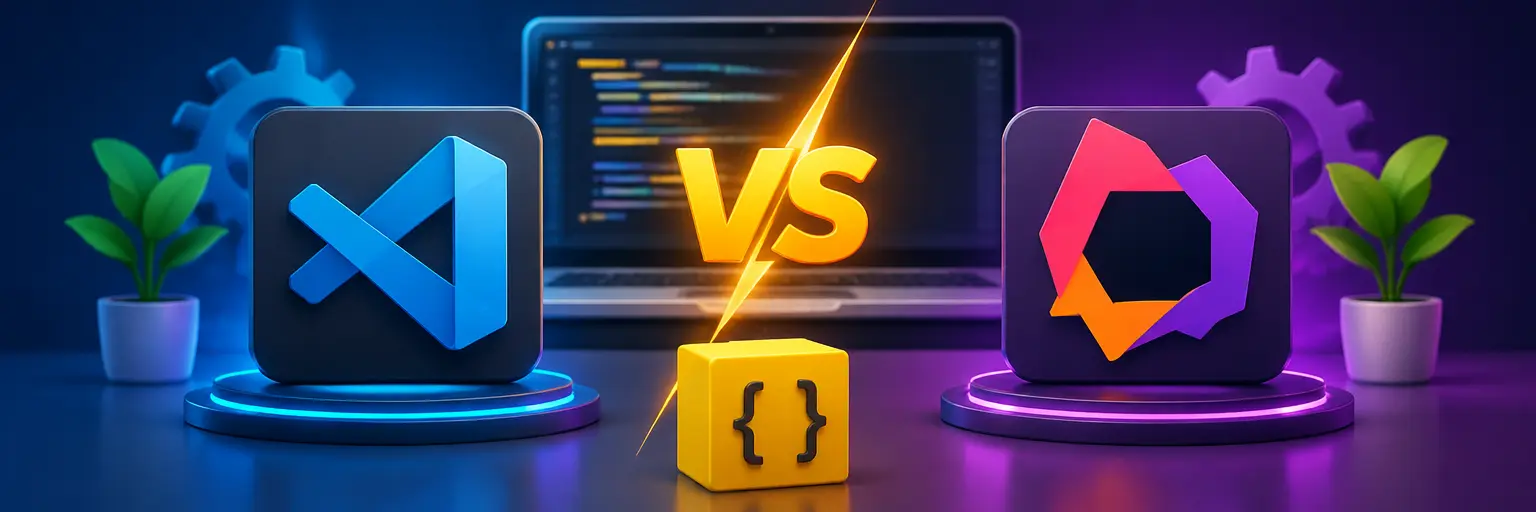
Choosing the right code editor or IDE is a game-changer for your JavaScript workflow. Whether you’re a beginner debugging your first script or an intermediate dev building complex Node.js apps, the right tool boosts speed, reduces errors, and makes learning feel effortless. In this showdown, we break down the best code editors and IDEs for JavaScript—comparing performance, extensions, debugging, IntelliSense, and ease of use. Our goal is to help you pick the perfect fit for your projects, not just the most popular name. Find the editor that matches your coding style and unlocks faster, smarter development—because comfort in your toolchain directly impacts how quickly you master JavaScript. Let’s dive into the [IDE Name] vs [IDE Name] debate and power up your learning journey.
🤔 This JavaScript IDE comparison guide dissects WebStorm and VS Code, focusing on features crucial for managing JavaScript projects. Discover which IDE…
Read article
🤔 Choosing your first JavaScript IDE? This head-to-head comparison of VS Code and NetBeans clarifies which offers the best JavaScript IDE experience…
Read article
🤔 Choosing between Sublime Text and WebStorm for JavaScript development? This comparison dives into the JavaScript IDE Sublime vs WebStorm debate, highlighting…
Read articleWhen you're learning JavaScript quickly, the tool you write in can make or break your momentum. The best code editor or IDE isn’t just about syntax highlighting—it’s about speed, debugging power, and how seamlessly it integrates with modern JavaScript frameworks. Whether you’re a beginner juggling small projects or an intermediate developer building complex apps, selecting between a lightweight editor and a full-featured IDE is a critical decision. Below, we break down the essential comparisons, features, and real-world use cases to help you pick the perfect environment for your JavaScript journey.
A lightweight editor like VS Code focuses on speed and extensibility, while a full IDE like WebStorm offers deep project analysis, refactoring tools, and built-in testing. For JavaScript, the line has blurred—modern editors now include IntelliSense and debugging, but IDEs still excel in complex, multi-file refactoring. Your choice depends on your project scale: for quick experiments, a lightweight editor shines; for large codebases, an IDE’s intelligent code navigation saves hours. Most learners start with VS Code due to its free cost and massive plugin ecosystem, but understanding when to upgrade is key to professional growth.
Expect to spend more time configuring a lightweight editor, while IDEs come pre-configured with JavaScript-specific tools. However, that configuration teaches you the underlying mechanics—a bonus for learning. We’ll compare performance, RAM usage, and startup times, so you know which one won’t lag during your coding sessions. Ultimately, the best editor is the one that feels invisible, letting you focus on writing clean, bug-free JavaScript.
IntelliSense—or code completion—is the heart of any JavaScript editor. VS Code’s TypeScript-powered suggestions are impressive, offering contextual variables, function signatures, and import paths. WebStorm takes it further with smart completions that understand your entire project’s structure, even across modules. For beginners, this means fewer typos and faster learning of APIs; for intermediates, it accelerates refactoring. Both tools support JSDoc annotations, but WebStorm’s analysis is more aggressive, catching errors before you run the code.
You’ll also discover that AI-assisted completion, like GitHub Copilot, works well in both, but the baseline differs. In our tests, VS Code’s autocomplete is lighter and faster, while WebStorm’s is more precise but uses more memory. If you’re learning vanilla JavaScript, either works; but if you’re diving into React or Node.js, you’ll appreciate WebStorm’s framework-aware suggestions that reduce context switching and improve your coding flow significantly.
Debugging is where IDEs historically outshine editors. WebStorm includes a visual debugger with breakpoints, watches, and a console that works with Node.js and browser scripts out of the box. VS Code requires a launch.json setup, but once configured, its debugger is equally powerful. For testing, WebStorm integrates Jest, Mocha, and Karma natively, allowing one-click test runs and coverage reports. VS Code relies on extensions, which can be inconsistent but offer similar functionality with a little tweaking.
As a learner, you’ll spend hours debugging—so this matters. We recommend starting with VS Code’s simplified debugging for single-file scripts, then progressing to WebStorm’s enterprise-grade tools when you build multi-module apps. Expect a learning curve with either, but the payoff is faster bug fixes and a clearer understanding of call stacks and asynchronous flow. Both support conditional breakpoints, but WebStorm’s UI is more discoverable for beginners who haven’t memorized keyboard shortcuts.
No one likes a sluggish editor. VS Code is notorious for being lightweight—it uses around 300-500 MB of RAM for a typical project, perfect for older machines. WebStorm, being a Java-based IDE, can consume 1-2 GB or more, which may slow down low-spec laptops. However, WebStorm’s indexing makes large-scale operations (like find-all-references) instant, while VS Code may lag on huge codebases. Your hardware dictates the choice: if you have 8 GB of RAM or less, VS Code is your friend for learning; with 16 GB+, WebStorm’s speed justifies its memory appetite.
Startup time also differs—VS Code launches in under two seconds, WebStorm takes up to ten seconds. For quick JavaScript snippets, speed matters; for daily heavy use, the initial wait is acceptable. We’ll give you concrete benchmarks and tips to optimize both, such as disabling unused plugins or excluding node_modules from indexing. This ensures your editor doesn’t become the bottleneck in your learning pace, allowing you to focus on writing code efficiently.
VS Code’s biggest strength is its plugin marketplace—with over 30,000 extensions, you can add ESLint, Prettier, GitLens, and Docker support in minutes. WebStorm bundles most of these features natively, meaning less configuration but a steeper learning curve for customization. For JavaScript development, the essential plugins (ESLint, Prettier, Path Intellisense) are easy to install in VS Code, while WebStorm has them built-in and pre-configured. This saves setup time for intermediates who know what they need, but can overwhelm beginners with too many options.
Community support also differs: VS Code has countless YouTube tutorials and Stack Overflow answers, while WebStorm’s official docs are thorough but less beginner-friendly. We’ll guide you through the must-have extensions for VS Code that replicate WebStorm’s core features, ensuring you don’t miss out on critical functionality. Ultimately, if you love tinkering and discovering new tools, VS Code is a playground; if you prefer a stable, opinionated environment, WebStorm is your streamlined choice.
Yes, VS Code is 100% free and open-source, including for commercial use. You can install it on any operating system and use it for unlimited projects without licensing fees. This makes it an excellent choice for freelancers and startups. Microsoft generates revenue through Azure integrations, not the editor itself, so you won’t hit any paywalls.
WebStorm offers a 30-day free trial with full features. Students and teachers can get a free license through JetBrains’ education program, which requires a valid academic email. There’s also a discounted first-year price for individual developers, making it more accessible for serious learners who want to invest in professional tooling.
For absolute beginners, VS Code is recommended due to its lower learning curve, lighter resource usage, and huge community support. The built-in terminal and simple debugging options let you start coding immediately. WebStorm’s advanced features can be intimidating, but once you’re comfortable with basics, transitioning to WebStorm can accelerate your productivity.
Yes, JetBrains provides a VS Code keymap plugin for WebStorm, allowing you to reuse most shortcuts like Ctrl+P, Ctrl+Shift+F, and Ctrl+Shift+P. Conversely, you can install a WebStorm keymap extension in VS Code. This flexibility lets you switch between tools without losing muscle memory, making hybrid workflows seamless.
Both VS Code and WebStorm natively support ES6+ syntax, including arrow functions, async/await, and class properties. TypeScript is fully integrated in both—VS Code uses the TypeScript language server, while WebStorm includes it built-in. You don’t need extra plugins for basic support, though extensions can enhance specific framework integrations like React or Vue.