Your First Steps in JavaScript – Console Output and Alerts
Welcome to the very beginning of your coding journey! In this subcategory, you’ll learn how to make your first JavaScript programs communicate with you—and with your users—using the browser’s console and alert dialogs. These two tools are the “hello world” of debugging and user interaction, forming the foundation for everything from simple scripts to complex web apps. By the end, you’ll be comfortable seeing output, spotting errors, and creating immediate feedback loops, all while building confidence in your syntax and logic.
🔍 Understanding the Browser Console
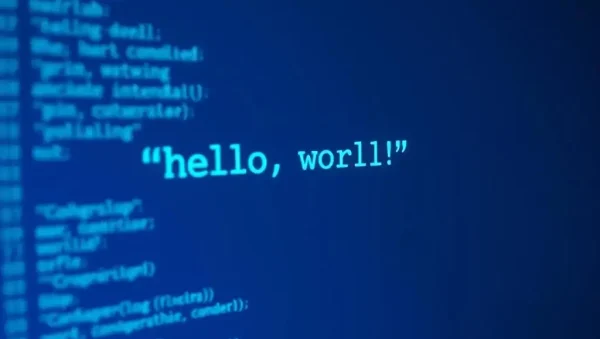
The browser console is your best friend as a JavaScript developer. It’s a hidden panel (usually opened with F12 or right-click → Inspect) where you can run code, see log messages, and view errors in real time. For beginners, the console is the sandbox where you test snippets without affecting your webpage. You’ll use console.log() to print values, strings, or even objects, which helps you verify what your code is actually doing. Unlike alerts, console output is non-blocking and doesn’t interrupt the user experience, making it ideal for debugging.
In this section, you’ll practice typing console.log("Hello, world!") and see it appear instantly. You’ll also learn about console.table() and console.warn() to display arrays and warnings in a cleaner format. Expect to run small, repetitive exercises that solidify your understanding of expressions, variables, and data types. This hands-on approach ensures you’re not just reading—you’re actively coding and seeing immediate results, which is the quickest way to learn.
⚠️ Mastering Alert Dialogs for User Interaction
Alerts are the simplest way to communicate with your website’s visitors. Using alert("Your message") pops up a modal window with an OK button, pausing code execution until the user dismisses it. This is perfect for welcome messages, confirmations, or quick notices. However, alerts are blocking—they stop all JavaScript until clicked, so you’ll learn when to use them sparingly versus the console. For beginners, alerts are great for visual feedback and testing interactive logic without complex UI setup.
You’ll explore variations like confirm() which returns true/false, and prompt() which captures user input. Through guided examples, you’ll build a mini quiz or a guess-the-number game using these methods. By the end, you’ll understand how to chain alerts with conditional statements, making your programs dynamic and responsive. Remember, real-world apps rarely use alerts, but mastering them early gives you a clear mental model of synchronous execution—a core JavaScript concept.
🧩 Combining Console and Alerts for Debugging
Now that you know both tools, you’ll learn to combine them strategically. The console is your silent diagnostic tool, while alerts are your visible notifications. For example, you might log variable values with console.log() to trace logic, then use an alert to display a final result to the user. This dual approach helps you catch bugs early and understand the flow of your code. You’ll also discover best practices: never leave console logs in production code, and use alerts only for critical confirmations.
Practical exercises include debugging a simple calculator where you log each operation step and alert the final answer. You’ll also learn to use console.error() to highlight problems in red, making issues easier to spot. This section bridges the gap between seeing output and understanding why your program behaves a certain way—key to becoming a self-sufficient coder. By practicing both together, you’ll develop a debugging mindset that saves hours later.
🚀 Writing Your First Interactive Script
It’s time to put it all together! You’ll create a small script that greets visitors with an alert, asks for their name via prompt(), logs the input to the console, and displays a personalized message using another alert. This mini-project teaches you to sequence actions, store data in variables, and handle user input gracefully. You’ll also learn about string concatenation and template literals (`${name}`) to build dynamic messages.
Expect to run the script in a live HTML page, not just the console, so you see how JavaScript integrates with web content. You’ll also explore basic error handling—what happens if the user cancels the prompt? You’ll write fallback conditions using if statements. This hands-on exercise gives you a tangible sense of accomplishment and a foundation for building more complex projects in the next subcategories, such as loops and functions.
📚 Common Pitfalls and How to Avoid Them
Every beginner stumbles, and this section prepares you for the most frequent mistakes. One classic error is mixing up console.log() and alert()—the former prints to invisible console, the latter blocks the page. Another pitfall is forgetting quotes or parentheses, leading to syntax errors. You’ll learn to read error messages in the console, which often point to the exact line number. Also, note that alert() is synchronous, so if you use it inside a loop, it will pause multiple times—often unwanted.
You’ll practice fixing snippets with intentional bugs, such as using single quotes inside a string without escaping. We’ll also cover the difference between var, let, and const in the context of these simple outputs—knowing when to use each prevents scope-related headaches later. By understanding these pitfalls early, you’ll write cleaner, more reliable code from day one, and you’ll feel confident tackling the next lessons without fear of errors.
💡 Best Practices for Clean Output
While learning, it’s tempting to spam console.log() everywhere, but professional development requires restraint. This final section teaches you to use comments to explain your code, keep messages concise, and remove debugging logs before sharing your work. You’ll also learn to format console output with group labels like console.group() and console.groupEnd() to organize related data. For alerts, you’ll practice writing user-friendly messages that are clear and actionable, not technical jargon.
We’ll also introduce you to linting tools and browser developer extensions that highlight potential issues in real time. You’ll create a simple “clean code” checklist: name variables meaningfully, use template literals, and avoid nested alerts. By adopting these habits now, your future projects will be easier to read, debug, and share with others. This section rounds off the subcategory, leaving you with a solid toolkit for your next step: variables and data types.
Frequently Asked Questions
What is the difference between console.log and alert?
console.log() prints output to the browser’s developer console without interrupting the page, ideal for debugging. alert() displays a modal dialog that blocks JavaScript execution until the user clicks OK, meant for direct user interaction. Use console for internal diagnostics, alerts for user-facing messages.
How do I open the browser console?
In most browsers (Chrome, Firefox, Edge), press F12 or Ctrl+Shift+I (Windows) / Cmd+Option+I (Mac), then click the “Console” tab. You can also right-click any webpage and select “Inspect” to open the developer tools. From there, type JavaScript directly to test output.
Can I use alert() in a loop without issues?
Yes, but it will pause each iteration until you click OK, which can be annoying and slow. It’s better to use console.log() inside loops for debugging, and reserve alerts for final results or user confirmations outside loops.
Why is my alert not showing the correct variable value?
Make sure you’re using template literals or concatenation correctly, e.g., alert("Hello " + name) or alert(`Hello ${name}`). Also verify the variable is defined before the alert runs, and check for typos like missing quotes or parentheses.
Is it okay to leave console.log in production code?
Generally no, because it clutters the console and can expose sensitive data. Best practice is to remove all console.log statements before deploying, or use a logging framework that can be disabled in production. Many teams use tools like UglifyJS to strip them automatically.