
MobileFriendly ToDo List: Building with JavaScript

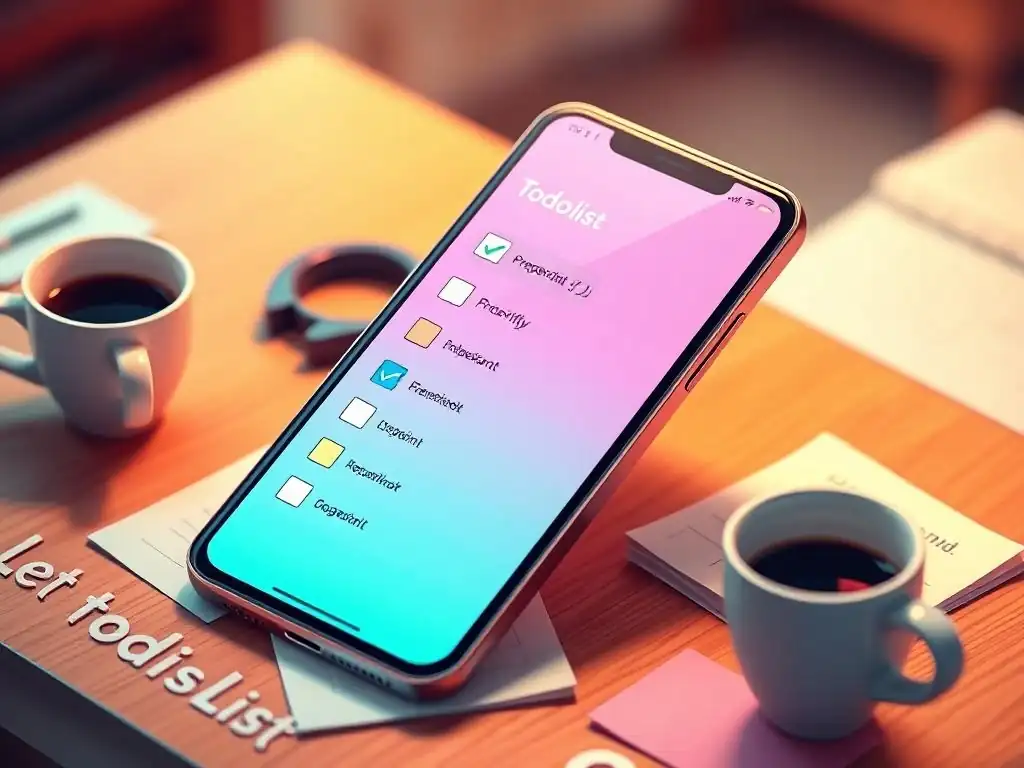
Ready to unlock the power of JavaScript and build amazing web applications? Welcome to LearnJavaScriptQuickly, your one-stop shop for mastering JavaScript. Dive straight into our beginner-friendly tutorials and learn to create dynamic web experiences. We'll guide you through building a fully functional, mobile-friendly ToDo list – starting with our comprehensive JavaScript ToDo list tutorial. Are you ready to transform your coding skills? Let's get started!
- Introduction to the JavaScript To-Do List Project
- Setting Up the Project: HTML Structure for Your To-Do List
- Adding JavaScript Functionality: Core Logic of Your To-Do App
- Enhancing User Experience: Styling and Mobile Responsiveness
- Advanced Features: Taking Your To-Do List to the Next Level
- Testing and Debugging Your JavaScript To-Do List
- Conclusion: Expanding Your JavaScript Skills
- Frequently Asked Questions
- Final Reflection: The Ever-Evolving Power of the JavaScript To-Do List
- Unleash Your Inner Productivity Guru!
Introduction to the JavaScript To-Do List Project
This tutorial provides a comprehensive guide to building a mobile-friendly to-do list application using plain JavaScript. We'll walk you through the entire process, from initial setup to adding advanced features, making it perfect for beginners looking to solidify their JavaScript skills and build a practical, real-world application. This project emphasizes a mobile-first design approach, ensuring your to-do list functions flawlessly on various screen sizes and devices. By the end, you'll not only have a functional to-do list but also a deeper understanding of core JavaScript concepts like DOM manipulation, event handling, and local storage.
This practical, hands-on experience will significantly boost your JavaScript proficiency and build your portfolio with a demonstrable project. Learning to build a to-do list is a fantastic stepping stone towards more complex JavaScript projects, providing a solid foundation for future development endeavors. Let's dive in and start building! 🎉
Why Build a To-Do List App?
Building a to-do list application is an excellent way to practice fundamental JavaScript concepts. It's a simple yet powerful project that allows you to apply your knowledge in a tangible way. This project will help you master several key areas:
- DOM Manipulation: You'll learn how to dynamically add, remove, and update elements within the webpage, making the to-do list interactive and responsive.
- Event Handling: You'll implement event listeners to handle user interactions like adding new tasks, marking tasks as complete, and deleting tasks.
- Local Storage: You'll use local storage to persist the to-do list data even after the browser is closed, ensuring data persistence.
- Mobile-First Design: You'll learn to design and develop your application with mobile devices as the primary focus, leading to a more responsive and user-friendly experience across all devices.
This project offers a practical application of these concepts, reinforcing your learning and building confidence in your abilities. The satisfaction of creating something functional from scratch is incredibly rewarding! Moreover, a completed to-do list application is a great addition to your portfolio, showcasing your skills to potential employers or clients.
Project Goals and Scope: A Mobile-First Approach
Our goal is to create a fully functional to-do list application that is optimized for mobile devices. This means:
- Responsive Design: The application should adapt seamlessly to different screen sizes and orientations.
- Intuitive Interface: The user interface should be easy to navigate and use, even on smaller screens.
- Core Functionality: The application should allow users to add, edit, mark as complete, and delete to-do items.
- Data Persistence: The application should save the to-do list data using local storage, so it persists across sessions.
We will focus on using only plain JavaScript, avoiding any external libraries or frameworks for this tutorial, allowing for a deeper understanding of the underlying principles. While we'll prioritize a clean and efficient codebase, we will not implement overly complex features in this introductory project. Future tutorials might explore enhancements like advanced styling, data sorting, and integration with external APIs.
Prerequisites: Basic JavaScript Knowledge
Before starting this project, you should have a basic understanding of the following JavaScript concepts:
- Variables and Data Types: Understanding how to declare and use variables of different types (e.g., strings, numbers, booleans).
- Operators: Familiarity with arithmetic, comparison, and logical operators.
- Control Flow: Knowledge of
if,else if,elsestatements andforandwhileloops. - Functions: Ability to define and call functions.
- DOM Manipulation (Basic): A foundational understanding of how to select and manipulate elements in the HTML DOM using JavaScript. This includes using methods like
getElementById,querySelector,innerHTML, andappendChild.
While prior experience with DOM manipulation is beneficial, this tutorial will guide you through the necessary steps, making it accessible even if you're just starting to learn about it. Don't worry if you're not an expert – we'll cover everything you need to know! Let's get started building your first JavaScript To-Do List! 🧑💻
Setting Up the Project: HTML Structure for Your To-Do List
This section details the foundational HTML structure required to build your mobile-friendly JavaScript To-Do list. We'll focus on creating a clean, organized HTML file that provides the necessary containers for your to-do items and user interaction elements. Remember, a well-structured HTML file is crucial for both the functionality and maintainability of your JavaScript application. Efficient HTML also contributes to a better user experience, especially on mobile devices. This tutorial emphasizes best practices for writing clean, semantic HTML5.
Creating the Basic HTML File
First, create a new HTML file (e.g., index.html). This file will serve as the backbone of your to-do list application. Start with the basic HTML5 boilerplate:
<!DOCTYPE html>
<html lang="en">
<head>
    <meta charset="UTF-8">
    <meta name="viewport" content="width=device-width, initial-scale=1.0">
    <title>My To-Do List</title>
    <style>
        /* Add your CSS styles here later */
    </style>
</head>
<body>
    <!-- Your To-Do List content will go here -->
    <script src="script.js"></script> </body>
</html>
Notice the <script> tag at the end of the <body>. This is where we'll link our JavaScript file ( script.js), which will contain the logic for managing the to-do list. The <meta name="viewport"> tag is crucial for ensuring proper rendering on various mobile devices. We've also included a placeholder for CSS styling which we'll add later for a polished user interface. Remember that mobile-friendliness is key for a successful To-Do list application.
Structuring the To-Do List Interface with HTML
Now, let's add the essential elements to structure the to-do list interface within the <body> of your HTML file. We'll use semantic HTML5 elements for better organization and accessibility:
<div class="container">
    <h1>My To-Do List</h1>
    <div class="input-group">
        <input type="text" id="new-task" placeholder="Add a new task...">
        <button id="add-task">Add</button>
    </div>
    <ul id="task-list">
        <!-- Task items will be added here dynamically -->
    </ul>
</div>
This code creates a main container div, a heading ( h1), an input field ( input) for adding new tasks, an "Add" button ( button), and an unordered list ( ul) to display the tasks. The id attributes are essential for targeting these elements with JavaScript later. This structure provides a clear and logical layout, enhancing user experience across different screen sizes. This approach is crucial for building a truly mobile-friendly application.
Adding Placeholder Elements for Dynamic Content
While the above structure provides the framework, we can enhance it by adding placeholder elements to indicate where dynamically generated content will appear. This improves clarity and makes it easier to understand the intended functionality. This is particularly helpful for beginners learning JavaScript.
For example, within the <ul id="task-list"> you could add a placeholder <li> element:
<ul id="task-list">
    <li class="placeholder">No tasks yet! Add some tasks using the input field above.</li>
</ul>
This placeholder element provides immediate feedback to the user, indicating that the list is currently empty. This is a simple yet effective usability improvement. This placeholder will be replaced by actual tasks once the JavaScript code is implemented and starts adding items dynamically. This approach significantly enhances the user experience, particularly on smaller mobile screens where visual clarity is paramount. Remember that a user-friendly interface is a key component of a successful mobile application. The use of placeholders also aids in debugging and understanding the flow of your application.
Adding JavaScript Functionality: Core Logic of Your To-Do App
This section dives into the heart of your mobile-friendly to-do list application: the JavaScript code. We'll build the core logic that allows users to add, delete, and potentially even edit tasks. This tutorial focuses on building a functional, albeit basic, to-do list – a perfect stepping stone for more advanced JavaScript projects. We will be focusing on efficient coding practices and clear, concise JavaScript, making this a highly effective JavaScript ToDo list tutorial.
Connecting JavaScript to Your HTML
Before we write any complex JavaScript functions, we need to connect our JavaScript file to our HTML. This crucial step allows the JavaScript code to manipulate the HTML elements on the page. This is usually done by adding a <script> tag to your HTML file, ideally just before the closing </body> tag. This ensures that the HTML structure is fully loaded before your JavaScript begins to work.
For example, if your JavaScript code is in a file named script.js, your HTML would include:
<script src="script.js"></script>
</body>
This simple line acts as the bridge between your visual interface and the underlying logic. Without this connection, your JavaScript code will be unable to interact with and modify the to-do list elements on the screen. Remember to place your script.js file in the same directory as your HTML file, or adjust the src path accordingly. This seemingly minor detail is often overlooked by beginners, leading to frustrating debugging sessions. Make sure this is working correctly before moving on; test it by adding a simple console.log("JavaScript Connected!"); in your script.js file and checking your browser's developer console. This simple check can save you significant time later on.
Creating Functions for Adding Tasks
Now, let's build the functionality to add new tasks to our to-do list. This requires several steps: getting user input from a text field, creating a new list item ( <li>) element, and appending it to the to-do list. We'll encapsulate this logic within a JavaScript function for better organization and reusability.
Consider this example:
function addTask() {
  const taskInput = document.getElementById("taskInput"); // Get the input field
  const taskText = taskInput.value.trim(); // Get the task text, removing whitespace

  if (taskText !== "") { // Check if the input is not empty
    const newTask = document.createElement("li"); // Create a new list item
    newTask.textContent = taskText; // Set the task text
    const taskList = document.getElementById("taskList"); // Get the to-do list
    taskList.appendChild(newTask); // Add the new task to the list
    taskInput.value = ""; // Clear the input field
  } else {
    alert("Please enter a task."); // Alert the user if the input is empty
  }
}
This function, addTask(), elegantly handles user input validation and dynamically updates the to-do list. It uses document.getElementById() to access elements by their ID, ensuring that the correct elements are targeted. The trim() method ensures that leading and trailing spaces are removed from user input, preventing unnecessary empty list items. Remember to associate this function with a button click in your HTML using an onclick event handler. This provides a smooth, interactive experience for the user. This is a fundamental part of any effective JavaScript ToDo list tutorial.
Implementing Task Deletion Functionality
Adding tasks is only half the battle; users need to be able to remove completed tasks. This requires attaching an event listener to each list item, allowing for individual deletion. We can achieve this using event delegation – a more efficient approach than adding listeners to each item individually. This method involves attaching a single event listener to a parent element (in this case, the ul element containing the tasks) and checking the event target to determine which item was clicked.
Here's how you can implement task deletion:
const taskList = document.getElementById("taskList");

taskList.addEventListener("click", function(event) {
  if (event.target.tagName === "LI") {
    event.target.remove();
  }
});
This code adds an event listener to the taskList element. When a list item ( <li>) is clicked, the event.target.remove() method efficiently removes the clicked item from the list. This elegant solution avoids the overhead of individually attaching event listeners to each list item, improving performance, especially as the to-do list grows. This approach is efficient and demonstrates a best practice often overlooked in simpler JavaScript ToDo list tutorials. Remember to test thoroughly to ensure smooth and reliable deletion functionality. This completes the core logic for your basic to-do list application. From here, you can expand upon this foundation to create more sophisticated features, such as task editing and local storage persistence.
Enhancing User Experience: Styling and Mobile Responsiveness
This section focuses on transforming your basic JavaScript To-Do list into a polished, user-friendly application by adding styling and ensuring it's accessible across various devices. A visually appealing and functional To-Do list significantly improves user engagement and satisfaction. We'll achieve this through CSS styling and responsive design techniques. Remember, a well-designed user interface (UI) is crucial for a positive user experience (UX), especially when dealing with a task management application like a To-Do list. This is key to making your "JavaScript ToDo list tutorial" a success.
Implementing CSS for a Clean and Modern Design
The foundation of a good user experience lies in a clean and aesthetically pleasing design. Let's enhance our To-Do list's appearance using CSS. We can achieve a modern look with minimal effort, focusing on readability and intuitive interaction. Consider using a consistent font family, such as Roboto or Open Sans, for a clean and professional look. We'll also incorporate appropriate spacing and padding to avoid a cluttered interface.
Here's an example of how you might style your list items:
.todo-item {
  background-color: #f2f2f2;
  padding: 10px;
  margin-bottom: 5px;
  border-radius: 5px;
}

.todo-item input[type="checkbox"] {
  margin-right: 10px;
}

.completed {
  text-decoration: line-through;
  color: #888;
}
This code snippet provides a simple yet effective styling for your to-do items. Remember to adjust colors and spacing to match your preferences. Consider adding hover effects to buttons and list items to provide visual feedback to the user. A well-structured CSS file makes your code maintainable and easily adaptable to future design changes. Proper CSS implementation is a crucial part of any successful JavaScript ToDo list tutorial.
Ensuring Mobile Responsiveness with Media Queries
Creating a mobile-friendly To-Do list is essential for reaching a wider audience. Users should be able to access and manage their tasks seamlessly regardless of their device. We can achieve this using CSS media queries, which allow us to apply different styles based on screen size.
For example, we can use the following media query to adjust the layout for smaller screens:
@media (max-width: 768px) {
  .todo-list {
    width: 100%;
  }
  .todo-item {
    font-size: 14px;
  }
}
This code will adjust the width of the To-Do list container and the font size of the list items when the screen width is 768 pixels or less. This ensures the To-Do list remains usable on tablets and smaller smartphones. Remember to test your responsive design across various devices and screen sizes to ensure optimal functionality and appearance. This is a vital step in any comprehensive JavaScript ToDo list tutorial. Thorough testing guarantees a positive user experience across all platforms.
Optimizing for Different Screen Sizes
Mobile responsiveness goes beyond simple media queries. Consider the different ways users interact with their devices. On smaller screens, users might rely more on touch input. Ensure that interactive elements like checkboxes and buttons are sufficiently large and spaced apart to prevent accidental clicks. You might need to adjust the layout entirely for very small screens, perhaps switching to a single-column view.
Consider using a mobile-first approach to your CSS. This means starting with styles optimized for the smallest screens and then adding styles for larger screens as needed. This ensures that your To-Do list looks good on all devices, even older or less powerful ones. This approach, often championed in modern JavaScript ToDo list tutorials, leads to a more efficient and user-friendly application. Remember to always prioritize usability and accessibility in your design decisions. A well-optimized To-Do list, adaptable to different screen sizes, enhances the overall user experience and makes your JavaScript project more robust and professional.
Advanced Features: Taking Your To-Do List to the Next Level
This section explores ways to enhance your basic JavaScript To-Do list, transforming it from a simple note-taker into a powerful productivity tool. We'll delve into features that boost functionality and user experience, solidifying your understanding of JavaScript's capabilities. These additions will take your basic JavaScript ToDo list tutorial knowledge to the next level.
Implementing Local Storage for Persistence
One significant improvement is adding persistence to your To-Do list. Currently, your list likely disappears upon page refresh. Local storage provides a simple solution. Local storage allows you to store key-value pairs directly in the user's browser, persisting data even after the browser is closed.
This involves using the localStorage API. Here's how you can modify your code to save and retrieve your To-Do items:
function saveTasks() {
  localStorage.setItem('tasks', JSON.stringify(tasks));
}

function loadTasks() {
  const savedTasks = localStorage.getItem('tasks');
  if (savedTasks) {
    tasks = JSON.parse(savedTasks);
    renderTasks();
  }
}

// ... your existing code ...

// Call loadTasks() on page load
window.addEventListener('load', loadTasks);

// Call saveTasks() whenever tasks are added, removed, or modified
// ... (integrate into your addTask, removeTask, etc., functions) ...
This code snippet first defines functions saveTasks and loadTasks that handle storing and retrieving the tasks array (assuming you're using an array to manage your tasks) from localStorage. JSON.stringify converts the JavaScript array into a string, suitable for storage, while JSON.parse reverses the process. Crucially, we call loadTasks when the page loads to restore any previously saved tasks and integrate calls to saveTasks within your existing task management functions (addTask, removeTask, etc.). This ensures data persistence across sessions. Remember to handle potential errors, such as when localStorage is unavailable or data is corrupted.
Adding Task Editing Capabilities
Enhance user experience by allowing users to edit existing tasks. This requires adding functionality to select a task, modify its text, and update the display. You'll need to add event listeners (likely click events) to your task items to trigger the edit mode.
One approach involves toggling a class to visually indicate edit mode and replacing the task text with an input field. Upon confirming the edit (e.g., pressing Enter), you update the tasks array and re-render the list. Error handling should be included to gracefully handle invalid input. Consider adding a cancel button to allow users to abort edits without saving changes.
For example:
function editTask(index) {
    // ... code to replace task text with input field and handle saving/canceling ...
}
Remember to integrate this editTask function with your existing task rendering and update the saveTasks function to reflect changes. A well-designed edit feature greatly improves the usability of your To-Do list application. The visual cues and user feedback are key to a smooth user experience.
Incorporating Task Prioritization or Categorization
Adding prioritization or categorization significantly boosts the To-Do list's organizational capabilities. You could introduce priority levels (e.g., high, medium, low) or categories (e.g., work, personal, errands).
This might involve adding extra fields to your task objects:
// Example task object with priority
const task = {
  text: "Grocery Shopping",
  priority: "high",
  completed: false
};
You'll need to adjust your UI to accommodate these new fields, perhaps using select menus or input fields for priority and category selection. Consider adding visual cues (e.g., different colors or icons) to distinguish tasks based on their priority or category. Sorting and filtering features could further enhance the organization, allowing users to view tasks by priority or category. This requires implementing sorting algorithms within your JavaScript code, potentially leveraging built-in array methods like sort. Careful consideration of the user interface and user experience is crucial for a successful implementation of these features. The added complexity requires thorough testing to ensure functionality and prevent unexpected behavior.
Testing and Debugging Your JavaScript To-Do List
Building a functional and user-friendly JavaScript To-Do list requires rigorous testing and debugging. This section focuses on ensuring your application works flawlessly across various platforms and devices, and provides strategies for identifying and resolving common coding issues. Mastering these techniques is crucial for any aspiring JavaScript developer, significantly improving your ability to create robust and reliable applications. This is especially important when aiming for a polished JavaScript ToDo list that stands out.
Testing on Different Devices and Browsers
Thorough testing is paramount for a successful JavaScript To-Do list. Your application should function consistently across different devices and browsers. Inconsistencies can stem from variations in screen size, browser rendering engines, and even operating systems. Therefore, test your To-Do list on a variety of devices and browsers to identify and address any compatibility issues.
Consider these key areas during testing:
- Responsive Design: Ensure your To-Do list adapts seamlessly to different screen sizes (desktops, tablets, smartphones). Elements should resize and reposition appropriately to maintain usability across all devices. Pay close attention to the layout and responsiveness of your list items and input fields.
- Browser Compatibility: Test your application on popular browsers like Chrome, Firefox, Safari, and Edge. Different browsers may interpret JavaScript code slightly differently, potentially leading to unexpected behavior. Prioritize compatibility with major browsers to reach the widest possible audience.
- Input Validation: Rigorously test input validation to prevent errors and crashes. Ensure that your application gracefully handles unexpected input, such as invalid characters or excessively long text entries. This will create a much more robust and reliable JavaScript ToDo list experience.
- Data Persistence: If your To-Do list uses local storage or a database, test data persistence across sessions and browser restarts. Verify that your data is saved and restored correctly, ensuring a smooth user experience. This is critical for a truly functional JavaScript ToDo list.
Here's a simple table summarizing the testing process:
| Test Area | Description | Expected Outcome |
|---|---|---|
| Responsive Design | Check layout and functionality on various screen sizes. | Seamless adaptation to different screen sizes. |
| Browser Compatibility | Test on Chrome, Firefox, Safari, Edge, etc. | Consistent behavior across all major browsers. |
| Input Validation | Test with various inputs, including invalid ones. | Graceful handling of invalid input; no crashes. |
| Data Persistence | Verify data is saved and restored correctly across sessions and browser restarts. | Data is consistently saved and retrieved. |
Remember, comprehensive testing is an iterative process. Address any issues discovered during testing and retest to ensure your To-Do list meets the highest quality standards.
Debugging Common JavaScript Errors
Debugging is an essential skill for any JavaScript developer. Common errors in JavaScript To-Do lists include:
- Typographical Errors: These are often the easiest to fix but can be the most frustrating to find. Carefully review your code for typos, paying close attention to variable names, function names, and property names. Using a good code editor with syntax highlighting can help significantly.
- Logic Errors: These are more challenging to identify as they don't result in immediate errors. They cause unexpected or incorrect behavior. Use
console.log()statements strategically to trace the flow of your code and identify where the logic goes wrong. Step-through debugging in your browser's developer tools can be immensely helpful. - Scope Issues: Problems with variable scope can lead to unexpected behavior. Ensure that variables are declared correctly and are accessible within the appropriate scope. Use
var,let, andconstkeywords appropriately to manage variable scope effectively. - Asynchronous Operations: Asynchronous operations, such as fetching data from an API or using timers, can cause unexpected behavior if not handled correctly. Use promises or async/await to manage asynchronous operations effectively.
Example of using console.log() for debugging:
function addItem(itemText) {
  console.log("Adding item:", itemText); // Log the item being added
  // ... rest of your addItem function ...
}
Effective debugging involves a systematic approach. Start by identifying the symptoms of the error, then systematically trace the code execution to pinpoint the root cause. Employ debugging tools, such as breakpoints and step-through debugging, to analyze the code's behavior in detail.
Troubleshooting and Optimization Tips
Once your JavaScript To-Do list is functional, focus on performance and user experience. Here are some optimization tips:
- Efficient DOM Manipulation: Minimize direct DOM manipulation. Instead, use techniques like document fragments to batch updates and improve performance. Avoid frequent updates to the DOM, as they can be computationally expensive.
- Event Delegation: Use event delegation to attach event listeners to a parent element instead of individual child elements. This improves performance, especially for lists with many items.
- Code Optimization: Review your code for areas of improvement. Use efficient algorithms and data structures where appropriate. Avoid unnecessary calculations or loops. Consider using profiling tools to identify performance bottlenecks.
- Caching: Cache frequently accessed data to reduce the number of times you need to fetch or calculate it. This can significantly improve performance, especially for larger To-Do lists.
By implementing these testing, debugging, and optimization strategies, you'll create a high-quality, robust, and user-friendly JavaScript To-Do list application. Remember, continuous improvement is key—regularly revisit your code to refine its performance and maintainability. This continuous cycle of development and refinement is crucial for creating a polished and professional JavaScript ToDo list tutorial.
Conclusion: Expanding Your JavaScript Skills
This tutorial provided a foundational understanding of building a mobile-friendly to-do list using JavaScript. You've successfully tackled core JavaScript concepts, including DOM manipulation, event handling, and local storage. Mastering these skills opens doors to a wide range of more complex JavaScript applications. Remember, practice is key! The more you build, the more confident and proficient you'll become.
This simple to-do list project serves as an excellent springboard for more ambitious projects. You now possess the fundamental building blocks for creating dynamic and interactive web experiences. Building upon this knowledge, you can explore advanced JavaScript frameworks and libraries to significantly enhance your development capabilities. The journey of learning JavaScript is ongoing, and this project is just the beginning of your coding adventure!
Further Learning Resources: Next Steps in JavaScript Development
Having completed this JavaScript to-do list tutorial, you're ready to explore more advanced concepts. Consider delving into these areas to further expand your JavaScript expertise:
- Asynchronous JavaScript: Learn how to handle asynchronous operations using
async/awaitand promises. This is crucial for building responsive and efficient web applications, especially when dealing with network requests or time-consuming tasks. Understanding asynchronous programming is a significant step toward building robust JavaScript applications. - JavaScript Frameworks and Libraries: Explore popular frameworks like React, Angular, or Vue.js. These frameworks provide structured ways to build complex user interfaces and manage application state effectively. They significantly streamline the development process, especially for larger projects.
- Testing Your Code: Learn about unit testing and integration testing using frameworks like Jest or Mocha. Writing tests helps ensure the quality and reliability of your code, particularly as your projects grow in complexity. Testing is an invaluable skill for any serious JavaScript developer.
- API Integration: Learn to interact with external APIs to fetch and display data from various sources. This opens up a world of possibilities, allowing you to integrate your applications with services like weather APIs, social media platforms, or databases.
Potential Project Enhancements and Future Features
This to-do list application offers a strong foundation for future enhancements. Here are some ideas for expanding its functionality:
- Task Prioritization: Implement a system for prioritizing tasks (e.g., high, medium, low). This could involve adding a dropdown menu or using visual cues like color-coding. This enhancement would improve task management capabilities.
- Due Dates and Reminders: Add the ability to set due dates for tasks and implement browser notifications or other reminder systems. This would add a time-sensitive element to the to-do list.
- Persistent Storage: Explore more robust data storage options beyond
localStorage, such as IndexedDB or a cloud-based solution. This would ensure data persistence even if the browser's local storage is cleared. - Advanced UI Features: Enhance the user interface with features like drag-and-drop reordering of tasks, search functionality, or the ability to categorize tasks into different lists. These features would make the to-do list more user-friendly and efficient.
- Theme Customization: Allow users to customize the appearance of the to-do list with different themes or color schemes. This would personalize the user experience.
| Feature | Description | Complexity Level |
|---|---|---|
| Task Prioritization | Add priority levels (high, medium, low) to tasks. | Low |
| Due Dates | Allow users to set due dates for tasks. | Medium |
| Reminders | Implement browser notifications or other reminders for upcoming due dates. | Medium |
| Persistent Storage | Use IndexedDB or a cloud-based solution for more robust data storage. | High |
| Drag-and-Drop | Enable drag-and-drop reordering of tasks. | Medium |
Congratulations on Building Your First JavaScript App! 🎉
You've successfully completed your first JavaScript project! Building this to-do list demonstrates a significant understanding of fundamental JavaScript concepts. Remember the feeling of accomplishment—it's a powerful motivator to continue learning and building. Keep practicing, keep experimenting, and keep pushing your limits. The world of web development awaits! The journey to mastering JavaScript is a marathon, not a sprint. Celebrate this milestone and look forward to creating even more impressive applications. Keep coding!
Frequently Asked Questions
What is this tutorial about?
This tutorial teaches you how to build a mobile-friendly ToDo list application using JavaScript. You'll learn the fundamental concepts and steps involved in creating a functional and responsive to-do list.
What prior knowledge is needed to follow this tutorial?
Basic understanding of HTML, CSS, and JavaScript is helpful, but not strictly required. The tutorial provides explanations suitable for beginners, and you'll learn along the way.
Will I be able to create a fully functional ToDo list after completing the tutorial?
Yes! The tutorial guides you through building a complete ToDo list application, including features like adding, deleting, and marking tasks as complete.
What makes this ToDo list tutorial "mobile-friendly"?
The design principles and techniques used in the tutorial ensure the application is responsive and adapts seamlessly to different screen sizes, making it usable on various devices.
Where can I find the code and resources for this tutorial?
The complete code and supplementary resources are available on the LearnJavaScriptQuickly website. The tutorial provides links to all necessary files and resources throughout the learning process.
Final Reflection: The Ever-Evolving Power of the JavaScript To-Do List
Building a simple to-do list with JavaScript might seem like a small project, but it represents a powerful gateway to understanding fundamental programming concepts and the ever-growing potential of web development. The ability to create interactive and dynamic experiences directly within a browser, using readily accessible tools like JavaScript, is transforming how we interact with technology daily. This simple application is far more than just a list; it's a microcosm of the larger digital world we inhabit.
The impact of accessible coding tutorials, like this one, cannot be overstated. They empower individuals to take control of their digital lives, fostering creativity and problem-solving skills. The ability to build even a basic application like a to-do list instills a sense of accomplishment and opens doors to more complex projects. The best way to learn is by doing,
and this simple JavaScript to-do list provides the perfect platform for that hands-on experience. This isn't just about ticking off tasks; it's about building confidence and a deeper understanding of the technology shaping our world.
Now, consider what you can build. Take the knowledge gained from this tutorial and apply it to your own projects, big or small. Perhaps you'll create a more sophisticated to-do list with advanced features, or maybe you'll use this foundation to build something entirely new. The possibilities are endless. Don't just passively consume information; actively create. Embrace the power of JavaScript, and let your imagination guide you to build the digital future you envision.
Unleash Your Inner Productivity Guru!
Congratulations on mastering the fundamentals of JavaScript and building mobile-friendly to-do lists! You've developed the skills to create your own custom productivity app. Ready to put your knowledge into practice?
- Craft your ideal to-do list app: Customize the code we've covered to match your preferences. Add features, refine the design, and make it entirely your own.
- Share your accomplishment: Showcase your app on social media and inspire others to learn JavaScript! Use the hashtag #JSProductivity.
- Enhance your app with advanced features: Explore and implement local storage to ensure your to-do list data persists, creating a truly robust and powerful application.
What exciting features will you add to your JavaScript to-do list app next? Share your innovative ideas in the comments!