MobileFriendly ToDo List: Building with JavaScript
😊 Learn to build a mobile-friendly to-do list application using this JavaScript ToDo list tutorial! Our step-by-step guide makes creating interactive, responsive…
Read article

Kickstart your coding journey with hands-on, beginner-friendly projects like a dynamic To-Do List and an interactive Counter! These JavaScript practice projects are designed to help you master core concepts—DOM manipulation, event handling, and state management—without overwhelming complexity. Perfect for novice coders, each mini-project offers instant visual feedback, builds your portfolio-ready skills, and transforms theory into real-world application. Whether you’re tracking tasks or incrementing numbers, you’ll learn by doing, gaining the confidence to tackle advanced challenges next. Dive into simple, practical, and rewarding exercises that make learning JavaScript fast, fun, and effective!
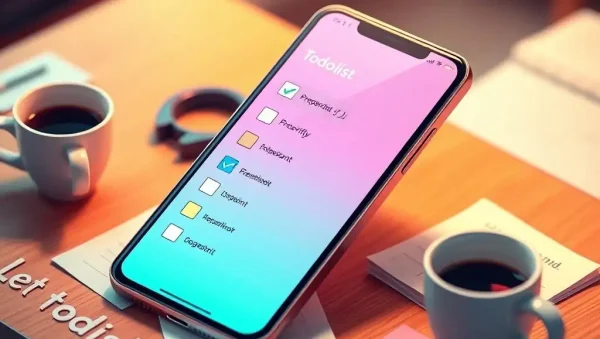
😊 Learn to build a mobile-friendly to-do list application using this JavaScript ToDo list tutorial! Our step-by-step guide makes creating interactive, responsive…
Read article
😊 Master JavaScript fundamentals by building a fully functional to-do list! This JavaScript ToDo list tutorial provides a step-by-step guide, perfect for…
Read article
🤔 This JavaScript local storage tutorial empowers you to build persistent web apps by securely storing user data directly in the browser,…
Read articleWelcome to this dedicated subcategory inside LearnJavaScriptQuickly, where you will build two classic, beginner-friendly JavaScript projects: a To-Do List and a Counter. These projects are more than just coding exercises – they are your first step toward writing real, interactive web applications. Instead of passively reading theory, you will engage with hands-on coding that teaches you core concepts like DOM manipulation, event handling, arrays, and local storage. By the end of this page, you will have two functional projects ready to showcase, along with a deeper understanding of how JavaScript brings static HTML pages to life. Let’s dive into the practical world of JavaScript, one line of code at a time.
The To-Do List is the ultimate beginner project because it combines HTML structure, CSS styling, and JavaScript logic in a single, cohesive application. You’ll learn how to capture user input from an input field, append new tasks to a dynamic list, mark tasks as complete, and delete them with ease. This project introduces you to event listeners (like click and submit), the createElement and appendChild methods, and the concept of state management – where your list data lives and changes. Expect to understand how to manipulate the DOM in real time, making your web page feel responsive and interactive from the very first click.
As you code this project, you’ll also practice breaking a larger task into smaller, reusable functions. For example, you’ll separate the logic for adding a task, deleting a task, and toggling completion status. This modular approach is essential for writing clean, maintainable JavaScript. You’ll also discover how to prevent the default form submission using event.preventDefault(), a skill you’ll use in almost every future project. By the end, you’ll have a fully working to-do list that can add, remove, and complete items – and you’ll be ready to add features like editing tasks or filtering by status on your own.
The Counter project is deceptively simple, yet it teaches you the fundamentals of state variables and user interaction. You’ll create a number displayed on the screen, with buttons to increase, decrease, and reset the value. This project is perfect for understanding how JavaScript stores data in variables (let count = 0) and updates the UI based on that data. You’ll practice using addEventListener for each button and learn how to update text content dynamically with textContent. Expect to grasp the crucial difference between let (for mutable values) and const (for fixed references), which is a common source of confusion for beginners.
Beyond the basics, this counter project introduces you to user experience and edge cases. What happens if you try to go below zero? Should you allow negative numbers, or add a minimum limit? How do you style buttons to give visual feedback on hover? These small decisions help you think like a developer. You’ll also explore the concept of scope – where your variables live and how functions access them. By the end, you’ll be comfortable creating interactive interfaces that respond immediately to user actions, laying a solid foundation for more complex apps like calculators, timers, or quizzes.
One of the most important skills you’ll learn in these projects is the separation of concerns. Instead of writing messy spaghetti code, you’ll organize your work into three distinct layers: HTML for structure, CSS for presentation, and JavaScript for behavior. In this subcategory, we show you exactly how to link your JavaScript file using the defer attribute, ensuring your script runs after the DOM is fully loaded. You’ll also discover the power of semantic HTML – using tags like <ul>, <li>, and <button> to make your code readable and accessible. This structure not only makes debugging easier but also improves SEO and performance.
We delve into best practices for naming variables and functions, using consistent indentation, and adding comments to explain your logic. You’ll learn how to use the browser’s Developer Tools (especially the console and element inspector) to test your code and spot errors quickly. Expect to see real-world patterns like querySelector and querySelectorAll to grab elements efficiently, and you’ll understand why innerHTML is sometimes avoided due to security risks (like XSS). By mastering this separation, you’ll be able to reuse your styling and logic across multiple pages, making you a more efficient coder from day one.
While a basic to-do list and counter work fine during a single session, the real magic happens when you make them persist after a page refresh. In this subcategory, you’ll learn how to use localStorage to save your tasks and count values directly in the browser. This introduces you to the Web Storage API, where data is stored as strings and can be retrieved with JSON.parse() and JSON.stringify(). You’ll understand how to convert your array of to-do items into a JSON string for storage, then parse it back into a usable array when the page loads. This is a game-changer because it turns your static projects into persistent applications that remember user data – a core feature of many real-world apps.
We also cover proper error handling when reading from local storage, such as checking if the stored data is valid or if the key exists. You’ll practice synchronizing your UI and your storage on every action – add, delete, update – so that the displayed list always matches what’s in the browser. This hands-on experience with local storage prepares you for more advanced topics like sessionStorage and even backend databases later on. You’ll walk away with projects that feel genuinely useful, and you’ll have the confidence to add localStorage to any future JavaScript project you build.
No developer writes perfect code on the first try – that’s why debugging is an essential skill. In this subcategory, we guide you through common beginner mistakes like typos, missing parentheses, and incorrect variable scopes. You’ll learn how to use console.log() strategically to trace your code’s execution and see the values of variables at different steps. We also introduce you to the Chrome DevTools breakpoints feature, where you can pause your code and inspect the state of your application line by line. Expect to understand the difference between syntax errors (which prevent your code from running) and logic errors (where your code runs but gives wrong results).
Testing is equally important. We show you how to create simple test cases for your counter, like clicking increment three times and verifying the display shows “3”. For the to-do list, you’ll test adding items with empty inputs, adding duplicate items, and deleting items from various positions. You’ll also learn to use clear console messages and how to handle edge cases such as very long text or special characters. By practicing debugging and testing on these small projects, you build a habit that will save you hours of frustration when working on more complex applications later. These skills are just as important as writing the code itself.
No, you don’t need prior experience. These projects are designed for absolute beginners. You should know basic HTML and CSS, but all JavaScript concepts are explained step-by-step. You’ll learn variables, functions, events, and DOM manipulation as you build, making this an ideal first project.
On average, a beginner can complete both projects in about 3 to 5 hours if coding along with the tutorials. This includes time for experimentation and debugging. If you’re already comfortable with HTML/CSS, you may finish even faster.
Absolutely! Both a to-do list and a counter are classic beginner projects that demonstrate your understanding of core JavaScript. Enhance them with unique styling, extra features like filtering or animations, and you’ll have a solid portfolio piece that shows practical coding skills.
Usually, not a browser issue but a code problem. Ensure you call localStorage.setItem() after every change and localStorage.getItem() on page load. Also, check that your data is converted to a string with JSON.stringify(). Follow our debugging guide to trace where your code might be failing.
Yes, both projects use standard web technologies that work on all modern browsers and mobile devices. Your to-do list and counter will be responsive if you use flexible CSS (like percentages or flexbox). We recommend testing on Chrome, Firefox, and Safari for best results.