Mastering DOM Selectors: The Gateway to Interactive Web Development
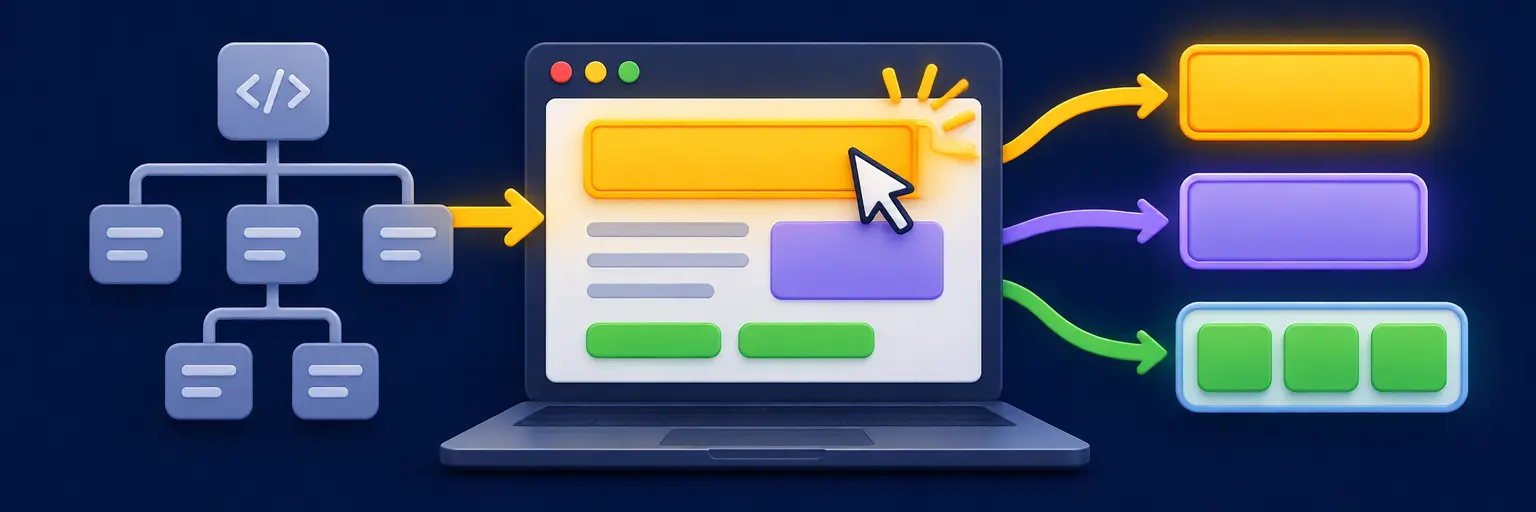
Welcome to the DOM Selectors – getElementById, querySelector, querySelectorAll subcategory, a core pillar of our DOM Manipulation & Interactive UI Development track at LearnJavaScriptQuickly. Here, you’ll transition from static HTML to dynamic, user-responsive pages by learning how to precisely target and extract elements from the Document Object Model. Whether you’re building a simple to-do app or a complex single-page interface, mastering these selectors is the first critical step. This guide is packed with practical examples, performance tips, and real-world exercises to ensure you select elements like a pro—fast and error-free.
🔍 Unlocking Element Retrieval with getElementById
getElementById is your fastest, most direct path to a single unique HTML element, leveraging the browser’s built-in ID lookup engine. You’ll learn its syntax, best practices (like using camelCase matching), and how it differs from other methods when speed is critical. Expect step-by-step tutorials that show you how to capture a button click, change text dynamically, or update a form field—all by referencing an ID that never repeats on the page.
Beyond the basics, we cover common pitfalls, such as forgetting that IDs are case-sensitive and ensuring your script runs after the DOM is fully loaded using DOMContentLoaded. You’ll also see performant patterns for caching frequently accessed elements, avoiding unnecessary re-queries. By the end, you’ll confidently use this method for simple, high-impact interactions, understanding why it remains a staple in legacy and modern JavaScript alike.
🧭 Exploring querySelector – CSS-Style Precision
querySelector lets you grab the first matching element using any valid CSS selector, from classes and attributes to pseudo-classes like :hover. This flexibility replaces the need for multiple separate methods, making your code cleaner and more intuitive. Our tutorials walk you through real-world examples: selecting a form input by its name attribute, targeting a specific <li> within a nested list, or finding a button with a data attribute—all in one line.
You’ll also discover how querySelector integrates perfectly with event delegation and async operations, as it returns a live or static NodeList depending on usage. We emphasize debugging techniques, like checking for null when no match exists, and how to combine it with closest() for parent traversal. Expect hands-on challenges that mirror real UI tasks, such as highlighting an active navigation link or toggling a modal based on a custom data-attribute selector.
📚 Harnessing querySelectorAll for Multiple Elements
querySelectorAll returns a static NodeList of every element matching your selector, enabling bulk operations like iterating through all cards, checkboxes, or menu items. This subcategory dives deep into converting NodeLists to arrays for using methods like map(), filter(), and forEach(). You’ll learn to add event listeners to multiple buttons efficiently, apply CSS class toggles to groups, and extract data from several elements—all without repetitive code.
We set your focus on performance: how the static nature of querySelectorAll prevents “live” list surprises, and why it’s often preferred over older methods like getElementsByClassName when working with dynamic DOM changes. The lessons include complex selectors with combinators (e.g., .item > .price) and attribute matching, plus practical projects like building a dynamic table filter. By mastering this, you’ll write scalable, maintainable JavaScript that handles any UI collection with ease.
⚡ Choosing the Right Selector for Maximum Performance
Not all selectors are created equal—getElementById is the speed king, but querySelector offers flexibility at a slight cost. This section provides a definitive comparison based on browser internals, typical usage scenarios, and real-world benchmarks. You’ll learn when to prioritize raw velocity (e.g., high-frequency animations) versus code readability, and how to micro-optimize without sacrificing clarity.
We also demystify the myth that querySelectorAll is always slower—it depends on selector complexity and document size. Through interactive timing experiments in our browser console, you’ll see measurable differences and adjust your approach accordingly. The goal is to equip you with a mental model: use ID for unique, frequently accessed nodes; use CSS selectors for semantic clarity and group operations; and always cache your results to avoid redundant DOM queries. This insight directly enhances your page load speed and user experience.
🛠️ Real-World Interactive UI Projects with Selectors
The true test of selector mastery is building polished UI features. Here, we guide you through three mini-projects: a live search filter using querySelectorAll on list items, a tabbed interface powered by querySelector for active-class management, and a form validator that highlights incorrect fields via getElementById. Each project includes before-and-after code, common mistakes, and debugging strategies, ensuring you can replicate them independently.
Beyond the code, we show how to combine selectors with event propagation and debouncing for smooth interactions. You’ll also integrate these selectors into your existing JavaScript logic to handle user gestures like clicks, hovers, and keypresses. After completing these exercises, you’ll not only understand selectors in isolation but also how they orchestrate complex, responsive interfaces—a skill that sets you apart for job interviews and freelance projects. By the end, you’ll confidently select anything from the DOM for any purpose.
Frequently Asked Questions
What is the main difference between querySelector and getElementById?
getElementById only matches a single element by its exact ID, which is guaranteed to be unique. querySelector accepts any CSS selector and returns the first match, allowing for more complex targeting (classes, attributes, pseudo-classes). Use getElementById for speed on known IDs, and querySelector for flexibility when you need CSS-style logic.
Why does querySelectorAll return a NodeList instead of an Array?
Historically, NodeList is a DOM-specific collection designed for performance and live updates. In modern browsers, you can convert it to an array using Array.from() or [...nodeList] to access array methods like map() and filter(). This conversion is trivial and recommended for most bulk operations, as it unlocks the full JavaScript array toolbox.
Can I use querySelector to select elements with multiple classes?
Absolutely! Use a CSS selector like '.button.primary' (with a dot for each class, no spaces) to target an element that has both classes simultaneously. For descendants, add spaces, e.g., '#menu .active'. The same syntax works for querySelectorAll to grab all matching elements, making it highly versatile for nested structures.
How do I avoid null errors when using getElementById?
Always store the result in a variable and check if it’s not null before manipulating it. Example: const button = document.getElementById('submit'); if (button) { button.addEventListener('click', handler); }. This guards against typos, missing IDs, or script execution before the element exists. Placing your script at the end of <body> or using DOMContentLoaded also helps.
Is querySelectorAll affected by future DOM changes?
No, querySelectorAll returns a static NodeList—a snapshot of elements at the time of the call. If you add or remove matching elements later, the NodeList won’t update. This is usually beneficial for predictable loops, but if you need live behavior, consider getElementsByClassName or re-query as needed. Always re-query if your logic depends on new elements appearing.