Mastering Keyboard and Mouse Events in JavaScript Games
Welcome to the Handling User Input in JavaScript Games subcategory, part of our JavaScript for Web Games & Mini-Projects series at LearnJavaScriptQuickly. Here, you’ll transform static canvases into interactive worlds by capturing what players press and click. This is the heart of game feel—without responsive input, even the best graphics feel dead. We’ll focus on real-time event handling, browser quirks, and performance tricks, using simple code examples you can test immediately. By the end, you’ll build a mini arcade game where every keystroke and mouse move matters.
🎮 Capturing Keyboard Events: Keydown, Keyup, and Keypress
Keyboard input is the backbone of most browser games, from platformers to typing challenges. We dive deep into keydown and keyup events for smooth, continuous movement, explaining why keypress is deprecated for games. You’ll learn to track multiple keys simultaneously using a state object, avoiding the “sticky key” problem that plagues beginners. Expect code snippets that map arrow keys, WASD, and spacebar to player actions, plus tips on preventing default browser behaviors like scrolling.
We also cover event.key vs. event.code—a critical distinction for layout-independent controls. For example, using event.code ensures your game works on AZERTY keyboards too. You’ll build a simple “move the square” demo, then extend it to handle sprint and jump mechanics. We’ll also show how to debounce rapid inputs for shooting games, ensuring your game logic stays stable even when players mash keys at 10 times per second.
🖱️ Mouse Events: Click, Move, and Drag for Game Controls
Mouse input adds precision for point-and-click adventures, aiming mechanics, and drag-and-drop puzzles. We explore mousedown, mouseup, mousemove, and click, distinguishing between button presses and movement. You’ll learn to get accurate canvas coordinates using getBoundingClientRect(), essential for matching clicks to on-screen game objects. We include a full “click-to-place” example, perfect for tower defense or map editors.
Drag-and-drop is a common mini-project, so we cover the full lifecycle: start drag on mousedown, update on mousemove, and end on mouseup. We’ll also discuss mouseenter and mouseleave for hover effects, useful for menu buttons and tooltips. Performance matters—we’ll show how to throttle mousemove events using requestAnimationFrame to keep your game running at 60fps without flooding the event loop. You’ll exit with a reusable “mouse manager” utility for any future project.
🕹️ Combining Keyboard & Mouse: Coordinated Player Controls
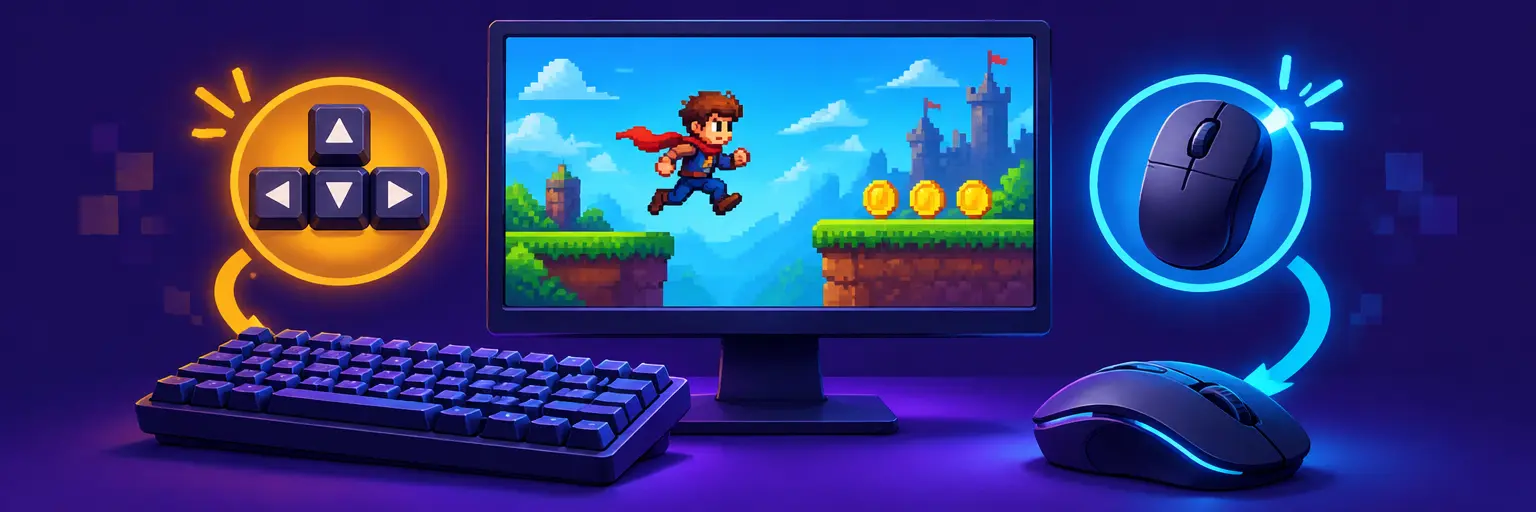
Most modern games require both input types simultaneously—think FPS games where you move with WASD and aim with the mouse, or puzzle games that use keyboard for rotation and mouse for selection. We teach you to unify input handling into a single input state object, merging keyboard booleans and mouse coordinates with minimal overhead. You’ll see patterns for priority rules, like when mouse clicks override keyboard shortcuts.
We’ll build a mini “shooter” demo where the player moves with arrows and aims with the mouse, firing on click. This section focuses on event listener management—removing listeners correctly to avoid memory leaks when changing screens. We also cover handling blur events to prevent stuck keys when the player alt-tabs away. By the end, you’ll have a clean architecture that scales to complex multiplayer input, with code examples you can adapt directly to your own games.
⚡ Performance Optimization & Event Throttling for Smooth Gameplay
Raw events fire too fast for game loops; unthrottled mousemove can cause jitter or dropped frames. We delve into requestAnimationFrame as your best friend, showing how to accumulate input changes and apply them once per frame. You’ll learn to avoid redundant state updates and use delta-time calculations to keep movement speed consistent across different monitor refresh rates.
We also cover passive event listeners to prevent scroll blocking, and the modern pointer events API, which unifies mouse, touch, and pen input—essential for mobile-ready games. We’ll test edge cases like rapid clicking, multi-button presses, and cross-browser inconsistencies (e.g., Firefox vs. Chrome key codes). You’ll finish with a performance checklist that ensures your input handling never becomes the bottleneck, keeping your game buttery smooth even on low-end devices.
🔧 Debugging Input Issues & Cross-Browser Compatibility
Input bugs are notorious—keys that stick, clicks that miss, or events that fire twice. We walk you through common pitfalls: using event.keyCode (deprecated), ignoring event.preventDefault(), and mishandling canvas focus. You’ll learn to use browser DevTools to log events and simulate devices, plus we provide a debug overlay you can copy-paste to visualize key states and mouse positions in real-time.
Cross-browser quirks are addressed with practical polyfills and fallbacks—for instance, handling pointerdown when mousedown fails on touch devices. We also cover iframe context issues (e.g., mouse leaving the canvas) and how to detect when the game loses focus. By the end, you’ll have a robust set of debugging tools and a mental model to quickly diagnose any input-related issue in your JavaScript games, saving hours of frustration during development.
Frequently Asked Questions
Why does my key press only work once, not continuously?
This happens because keydown fires repeatedly only if you hold the key—but many browsers delay repeat after a short pause. Use a state object (like keys = {}) and set keys[event.code] = true on keydown, and false on keyup. Then in your game loop, check if (keys['ArrowRight']) to move continuously. Never rely solely on keydown for movement.
How do I get the mouse position relative to my canvas?
Subtract the canvas’s bounding rectangle from the client coordinates. Use canvas.getBoundingClientRect() to get rect.left and rect.top, then compute x = event.clientX - rect.left and y = event.clientY - rect.top. Remember to account for CSS scaling by dividing by rect.width / canvas.width if your canvas is styled differently.
What’s the difference between event.key and event.code?
event.key returns the character (like “a” or “ArrowUp”) based on keyboard layout, while event.code returns the physical key (like “KeyA” or “ArrowUp”) independent of layout. For games, use event.code to ensure controls work on AZERTY or Dvorak keyboards. For typing games, use event.key to match what the player sees on screen.
Why is mousemove making my game laggy?
Mousemove fires very frequently—sometimes hundreds of times per second. If you update the game state or DOM on every event, it overloads the browser. Instead, store the latest mouse coordinates in variables and update your game inside a requestAnimationFrame loop. This batches updates to once per frame, keeping performance smooth.
Can I use touch events for mobile games instead of mouse?
Yes, but modern browsers support Pointer Events, which unify mouse, touch, and pen. Use pointerdown, pointermove, and pointerup instead of separate mouse and touch handlers. This simplifies your code and works across devices. Just remember to set touch-action: none on the canvas CSS to prevent scrolling or zooming while you interact.